
SSH ProxyJump: How to Use Jump Hosts (with Examples)
Updated Sep 2026 · originally published Sep 2026 · Tested on OpenSSH 9.x, Linux, macOS
Why use ssh proxy jump ?
ssh proxy jump is used to reach a private host through a jump host in one command, with direct ssh connection, using the -J flag:
ssh -J jump.example.com target.internal
The -J flag tells your SSH client to connect to the jump host first and tunnel through it to the target.
This arrangment doesn’t leave a copy of your session on the jump host.
A jump host, also called a bastion, is a gateway server that sits between you and machines that have no direct route from the outside.
This guide covers the -J flag, the ProxyJump directive in your SSH config, chaining through several hosts, copying files and forwarding ports through a bastion, the older ProxyCommand approach, and the errors people hit most, all with copy-paste examples.
How a jump host works
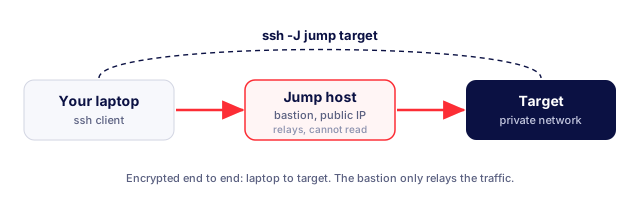
Production databases and internal servers usually live on private networks with no public address. The bastion is the one machine exposed to the internet or to the internal network.
ProxyJump routes your connection through it to the target. Your session stays encrypted end to end between your machine and the target. The jump host just relays the traffic but never sees inside it.
What is SSH ProxyJump?
ProxyJump is a built in OpenSSH feature, added in OpenSSH 7.3, that routes your connection to a target through one or more intermediate jump hosts. It replaced a pile of awkward ProxyCommand workarounds with a single readable option.
The fastest way to use it is the -J flag. The value is the jump host; the final argument is the target you actually want to reach. Name the user on each hop when they differ:
ssh -J [email protected] [email protected]
Your client opens a connection to the jump host, then establishes an encrypted connection through it to the target. The target sees a connection arriving from the bastion, while your session stays end to end.
Configure ProxyJump in your SSH config
Typing -J on every connection gets tedious. Record the jump in ~/.ssh/config instead, and reach the target by name:
Host target
    HostName target.internal
    User alice
    ProxyJump jump.example.com
With that saved, ssh target connects through the bastion with no extra flags. Cleaner still, define the jump host as its own block so several targets can reference it by alias:
Host jump
    HostName jump.example.com
    User alice

Host target
    HostName target.internal
    User alice
    ProxyJump jump
Multi-hop jumps
When one bastion is not enough, ProxyJump chains as a comma-separated list, hopping through each host left to right:
ssh -J jump1.example.com,jump2.example.com target.internal
The same chain works in the config file, which is easier to maintain as the path grows. Each hop is authenticated in turn, so every jump host still enforces its own access rules:
Host target
    HostName target.internal
    ProxyJump jump1.example.com,jump2.example.com
Copy files through a jump host (scp, sftp, rsync)
This is the part most guides skip. Since OpenSSH 8.0, scp and sftp accept the same -J flag as ssh, so you can transfer files through a bastion in one command.
# copy a local file to a server behind the bastion
scp -J [email protected] ./backup.tar.gz [email protected]:/tmp/

# interactive sftp session through the jump host
sftp -J [email protected] [email protected]
rsync does not take -J directly, but you pass the jump through its -e option:
rsync -avz -e "ssh -J [email protected]" ./site/ [email protected]:/var/www/
If you have the jump defined in ~/.ssh/config, it is simpler still: scp, sftp, and rsync all pick up the ProxyJump directive automatically, so scp ./file target:/tmp/ just works.
Forward a port through a jump host
A common need is reaching a service, like a database or an internal web UI, that only listens on the private network. Combine ProxyJump with local port forwarding (-L):
# forward local 5432 to a private database, through the bastion
ssh -J [email protected] -L 5432:db.internal:5432 [email protected] -N
Now connect to 127.0.0.1:5432 locally and the traffic tunnels through the jump host to the private database. The -N flag means “do not run a command, just hold the tunnel open.”
ProxyJump versus ProxyCommand
ProxyCommand is the older mechanism. It runs an arbitrary command to open the connection to the target rather than using the built-in jump logic. The common form uses SSH’s own -W option to forward through the intermediate host, which is essentially what ProxyJump does under the hood:
Host target
    HostName target.internal
    ProxyCommand ssh -W %h:%p jump.example.com
You can use ProxyJump in almost every case, because it is shorter, clearer, and handles multi-hop cleanly.
Use the ProxyCommand only when you need something ProxyJump cannot express.
The classic example:
when the target’s hostname resolves only on the jump host’s private LAN,
ProxyJump fails because your local client cannot look up that name, but a ProxyCommand that runs the lookup on the jump host works. The %h and %p tokens expand to the target host and port.
Conditional jumps with Match exec
When you want to use jump host only in some conditions, like when you are outside the office but not when you are on the internal network. The Match directive with an exec test runs a command locally and applies the block only when that command succeeds:
Match host target.internal exec "test -z \"$INSIDE_NETWORK\""
    ProxyJump jump.example.com
This applies the jump only when INSIDE_NETWORK is empty, so a connection from inside reaches the target directly while a connection from outside routes through the bastion.
Keep these rules readable; a config full of conditional jumps is powerful but harder for a teammate to follow.
Common ProxyJump problems and fixes
Most ProxyJump issues come down to where authentication happens.
Permission denied at the jump host.
This means the client could not authenticate to the bastion itself, not the target. Check that your key is loaded (ssh-add -l) and that your username on the jump host is right. Naming the user explicitly on each hop removes the ambiguity: ssh -J alice@jump target.
Do not reach for -A (agent forwarding).
ProxyJump does not need it, because your client authenticates to each host directly rather than hopping from the bastion. Adding -A forwards your agent onto a machine you may not fully control, which is exactly the exposure ProxyJump prevents.
A non-standard port on the jump host.
Specify the port on the host that uses it, either inline as jump.example.com:2222 in the -J value, or with a Port line in that host’s config block. Keep the target’s own port separate. Getting the port on the right hop usually fixes a jump that hangs.
ProxyJump and ProxyCommand silently conflict.
These two options compete, and whichever is set first wins; a later one is ignored. If a Host * block earlier in your config sets one, a per-host setting further down is silently dropped. Remove the redundant directive rather than layering both.
Host key verification failed for the target.
The first time you reach a target through a new jump, you will be asked to accept its host key as normal. If it fails unexpectedly, confirm you are actually reaching the intended target and not a different host behind the bastion.
Quick reference
| Task | Command |
|---|---|
| Jump to a target | ssh -J jump target |
| Different users per hop | ssh -J alice@jump bob@target |
| Multi-hop | ssh -J jump1,jump2 target |
| Non-standard jump port | ssh -J jump:2222 target |
| Copy a file through | scp -J jump file target:/path/ |
| rsync through | rsync -e "ssh -J jump" src/ target:/dst/ |
| Forward a port through | ssh -J jump -L 5432:db:5432 target -N |
| Config directive | ProxyJump jump (under Host target) |
Where to go next
ProxyJump lives in your SSH config, so it pairs with the rest of your ~/.ssh/config setup: host blocks, aliases, keys, and defaults. For quick one-off connections and the flags worth knowing, see ssh command examples. To go passwordless through your bastion, see SSH without a password.